A tablet menu is a menu on a screen that also takes the order. Before you think about layout, decide who holds the screen: the guest sitting at the table, your waiter walking the floor, or the guest on their own phone. Each suits a different room, and the menu design follows from that choice. Some design habits carry over to all three, and in some places a tablet is simply the wrong tool.
Three ways a tablet takes an order
A tablet that stays on the table. The guest browses, picks and sends the order alone. This is what most people mean by a tablet menu ordering system, and it's where design matters most, because nobody is standing there to explain a dish. It fits places where guests sit for a while and order in rounds: a restaurant with courses, a bar table, a brunch room.
A tablet your waiter carries. The screen belongs to staff. The guest still gets the welcome and the recommendation from a person, and the waiter taps the order in at the table instead of walking it to a terminal. That suits fine dining and any room where the conversation is part of what guests pay for, since a screen left on the table would cut against it.
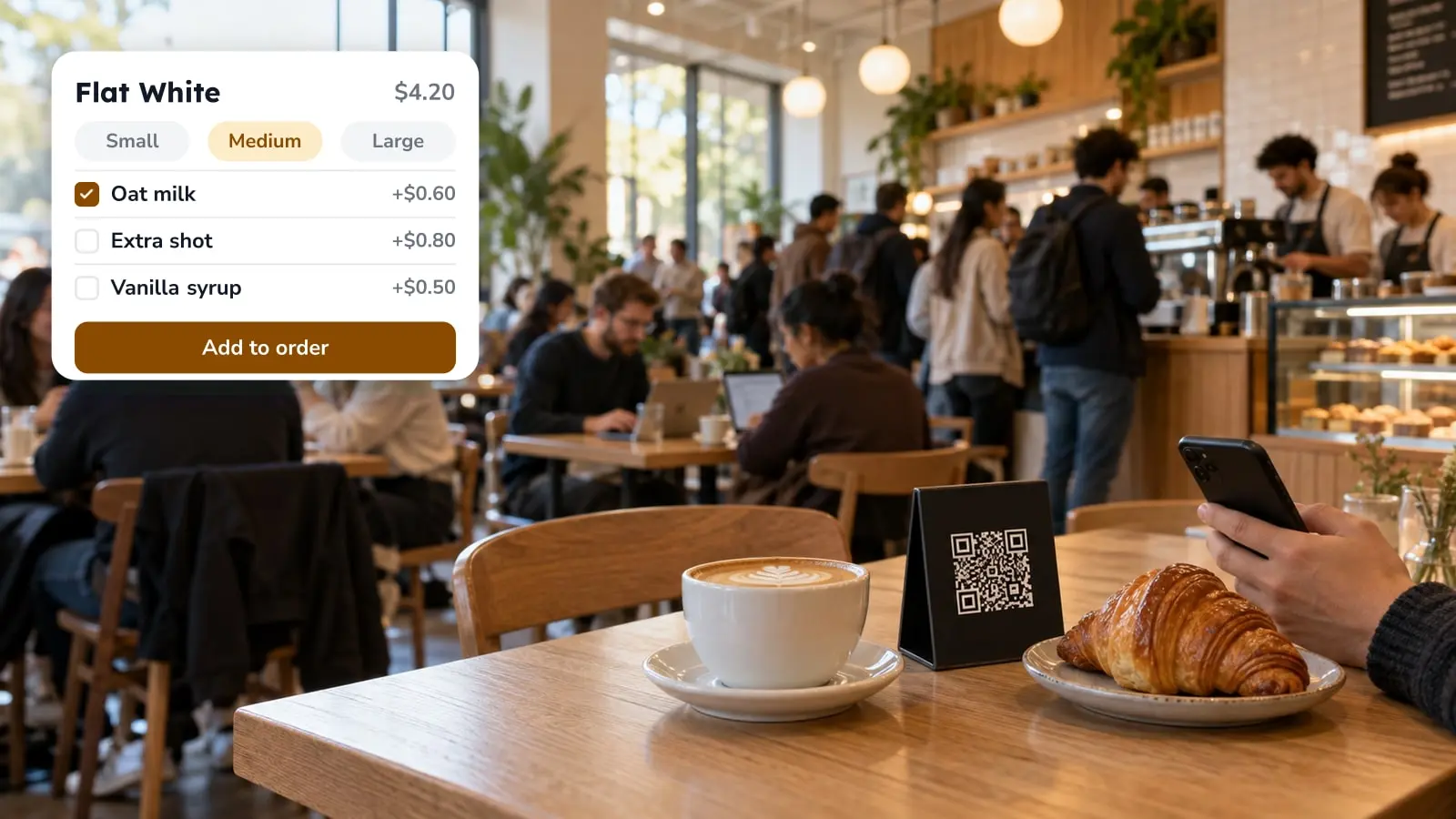
The guest's own phone. If you'd rather not buy, charge and clean tablets, a table QR code puts the same menu on the guest's phone. It's cheaper to start and nothing on the table can break, but you give up control of screen size and brightness, and an old phone may load photos slowly. Our piece on how QR codes change the guest experience covers that side, and online ordering for restaurants covers orders that arrive from outside the building.
A table tablet is a poor fit for a small counter cafe with five tables, where the barista already knows every order, and for a room where guests linger over one coffee for two hours. In both cases the screen is hardware you maintain for little in return.
How FineDine splits the tablet setup
In FineDine the tablet is its own ordering channel, next to dine-in QR and delivery/pick-up, and it has three modes. Full Service opens a new check for every order and treats the tablet as mobile. Table Top assigns the tablet to a table. Kiosk gives each guest a check number, which suits a counter or a fast-food line.
Two more settings decide who does the work. Order Submission and Table Selection can each be set to Customer or Waiter, so the same tablet can be a guest screen or a staff screen. The tablet can also send a checkout request and show bill info, with card at the POS, cash and online as the payment types.
The look is set apart from your QR menu. Design & Display has a Tablet Menu tab with its own theme, so a darker, larger layout for a table screen doesn't change what guests see on their phones. If you run a POS, the Marketplace lists integrations such as Foodics, Revel, Clover and Epos Now. Check that yours is there before you plan the floor around it.
Photos do most of the selling on a table screen
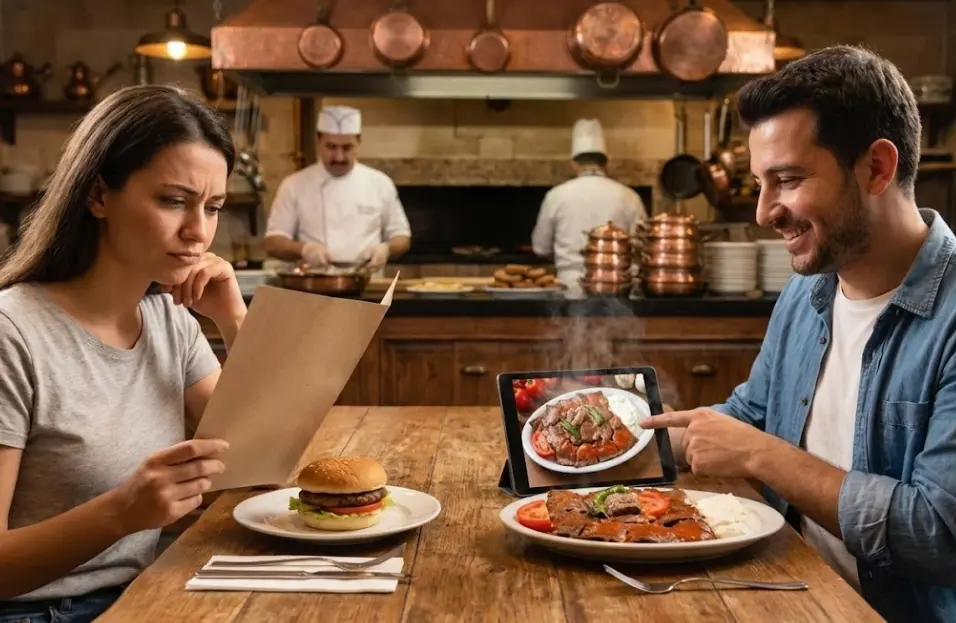
A guest alone with a screen decides by looking. A tablet shows photos at a size a laminated card never could, so a menu without them wastes the hardware. Put a photo on every dish you want to sell, starting with the top sellers and the high-margin plates.
If there's no photographer's budget, FineDine's AI Media Studio can enhance an existing photo (steam, garnish, lighting) or create one from scratch. It runs on credits, so look at the pricing page before you plan a full menu shoot. Wherever you can, photograph the real plate, because a picture that doesn't match what arrives at the table is the kind of thing a guest remembers.
Descriptions still earn their place, since a photo can't say what's in the sauce. A line or two is enough, with words that carry taste like buttery, crisp or smoked. The paragraph about the chef's childhood can go.
Keep the structure shallow
Too many choices on one screen slow guests down, and some give up. Split the menu into the sections your guests already think in (starters, mains, desserts, drinks) and keep the section bar visible so they can jump. A busy background behind the items fights the photos, so skip it.
Put your best sellers in their own section at the top. A guest who can't choose often follows what others pick, and your waiter gets to skip "what's good here?" for the tenth time. In the item editor, labels such as New, Signature, Popular and Seasonal can flag dishes without adding sections.
Check sizes on the actual device. Photos and text that look fine on a laptop can turn tiny or oversized on the tablet you bought, so hold it at arm's length in the light of your own dining room.
Sold-out dishes and mid-service changes
Telling a table that the dish they just picked is gone is an awkward moment, and a tablet can spare you most of it. Each item has a Mark as Sold Out option and a display switch, so you can flag the dish or hide it until it's back. Hiding is usually kinder than showing it and apologizing. For items that only run at certain times, like a lunch special or weekend brunch, the item editor also has availability settings by date and time.
The same editing makes seasonal changes quick, which helps when you swap the menu for autumn (a fall menu strategy guide) or build a holiday offer (Black Friday restaurant tips). A patio puts its own pressure on speed and accuracy, and outdoor dining tips go into that.
Reading what the tablet tells you
Once orders go through the tablet, you can see which dishes sell. The Item Report lists views, sales count and revenue per item, and AI Reports (FineDine IQ) adds a Menu Performance tab and a Timing tab, with 7, 14, 28 and 90 day ranges. A dish with many views and few sales tells you where to look, not why. Check the photo, the name and the price, and ask whether the dish ran out or was ordered outside the system. If a dish sells well with no photo, it's a good candidate for the first photo shoot.
Use the numbers to cut as well. Items nobody orders add scrolling and slow the decision on everything else.
| Setup | Who orders | Fits | Weak when |
|---|---|---|---|
| Tablet on the table | The guest | Long seatings, several rounds, bar tables | Few tables, short visits, no one to reset or charge devices |
| Tablet carried by the waiter | The waiter | Fine dining, rooms where service is the product | Waiters are too few to reach every table quickly |
| Guest's own phone via table QR | The guest | Cafes, casual rooms, low setup effort | Guests with old phones or no data, or no screen control |
Frequently Asked Questions
- Which kinds of restaurants use tablets to take orders?
- Mostly places with a clear reason for it: fine dining rooms where waiters order at the table, fast-food and counter operations using a kiosk, and bars or casual restaurants with tablets on the table. FineDine's tablet channel has a mode for each: Full Service, Table Top and Kiosk.
- What does a tablet ordering system cost?
- It depends on how many tablets you run and whether you add online ordering, so a number here would go stale. The current figures are on the FineDine pricing page.
- Does a tablet menu work with my POS?
- FineDine's Marketplace lists POS integrations, including Foodics, Revel, Clover and Epos Now, along with payment providers. If your system is on that list, you can connect it there. If it isn't, ask before you buy tablets.
- Can the same menu run on tablets and on guests' phones?
- Yes, a menu can be assigned to several channels, including dine-in QR and tablet. Each channel's look is set in its own tab under Design & Display, so you can style the tablet layout separately.
- Should the guest or the waiter enter the order?
- If guests are comfortable alone and you want fewer trips to the table, let them enter it. If your service is built on conversation, have the waiter do it. FineDine lets you set this to Customer or Waiter for the tablet.