Scan to order and pay at the table means the guest points a phone at a code on the table, orders from your menu in the browser and settles the bill from the same screen, with no app to download. Whether it suits you depends less on the software than on how your room runs. A code per table tends to work on a busy dinner floor, one shared code on a counter, and a tasting-menu room is often better off with neither.
From scan to paid
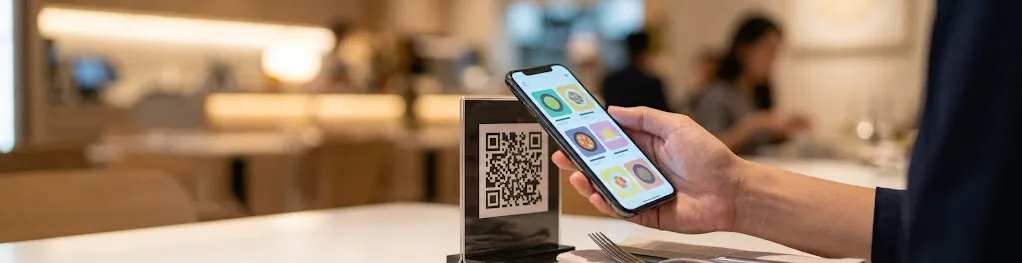
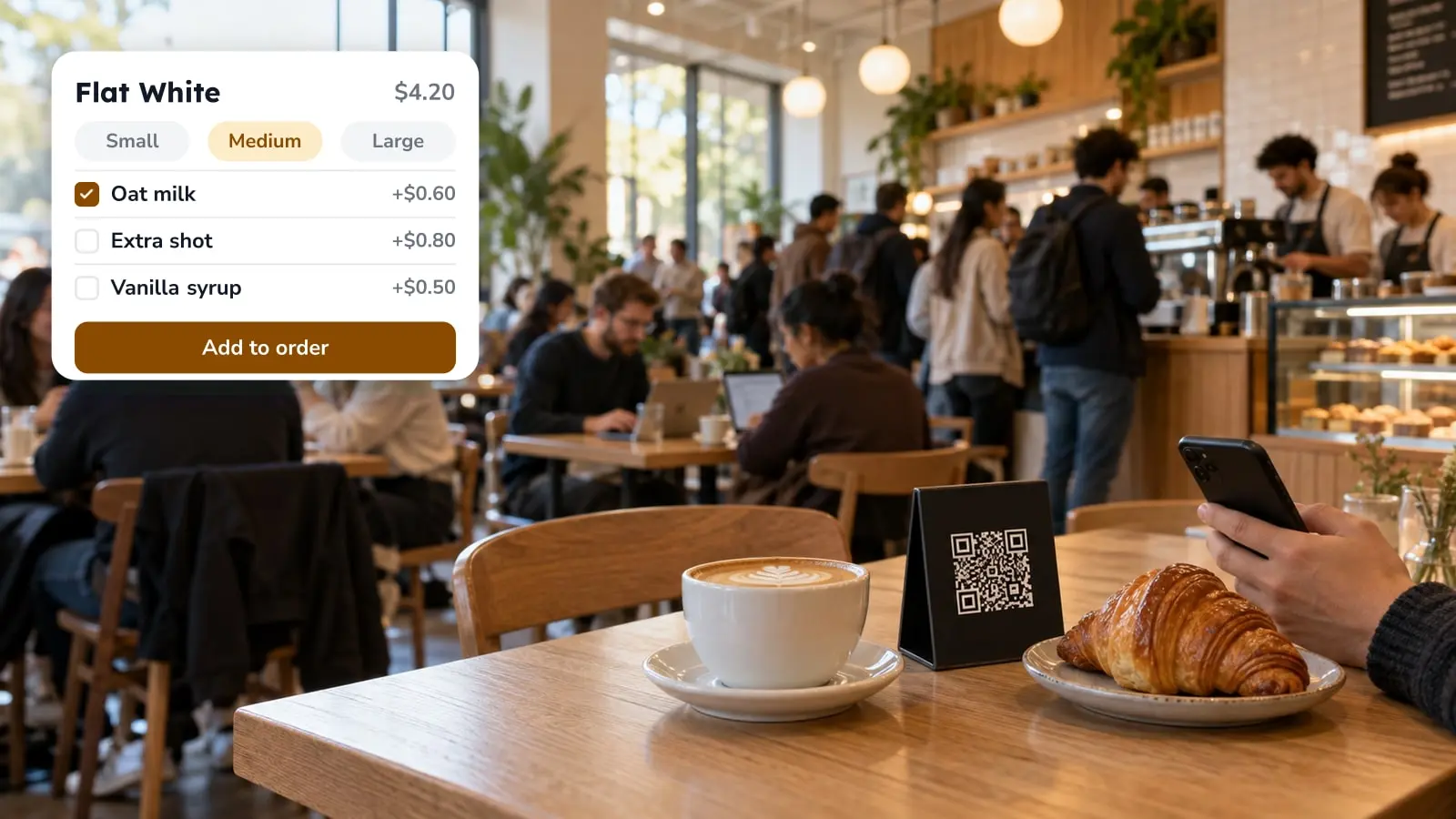
The guest sits down, holds the phone camera over the code and taps the link that appears. Your menu opens in the browser with photos, prices, portion options, allergen icons, and other languages if you've added translations. They pick dishes, add a note where the item allows one and send the order. It lands on your order screen, and with a code per table the ticket carries the table number.
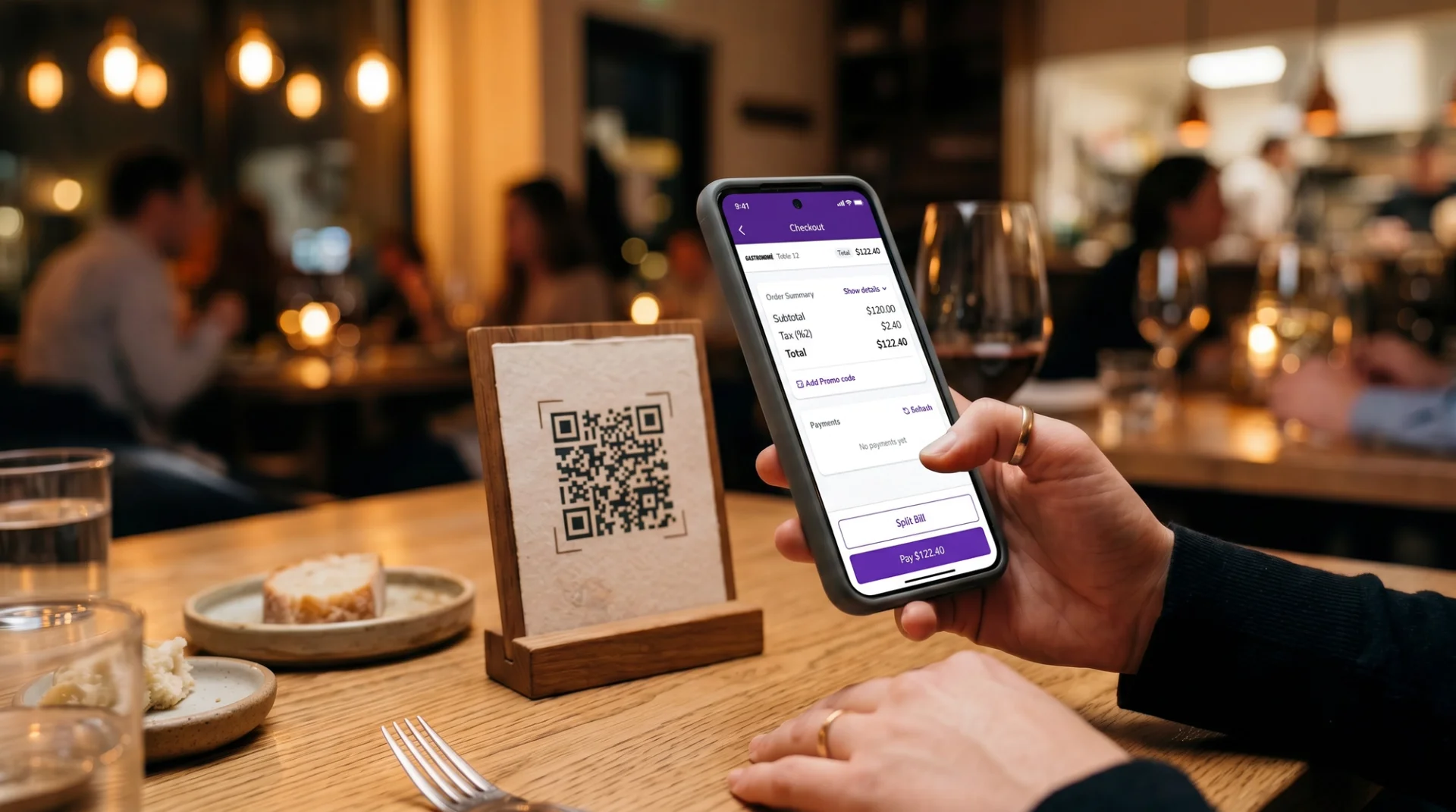
When the meal is over, the guest can pay from the phone, provided your ordering and payment settings allow it. They pay by card, Apple Pay or Google Pay and add a tip if they like. With Fast Checkout on a supported payment provider, a table of friends can split the amount instead of passing one card around. A guest who would rather ask for the bill and pay at the terminal can still do that, as long as you leave the terminal option open.
If the camera does nothing, the usual suspect is a code that is too small, glossy or badly lit. Test every printed code with a phone before the doors open, and keep a server free to walk the first few tables through their first scan.
Where the table codes and stands come from
The codes come out of your own setup, so you don't need a third-party generator. In FineDine you add your tables under Settings > Operations > Tables, then open Settings > QR Codes and use Download Table QR Codes. Each code carries its table number. If you run a terrace and a main room, add them as separate areas so the codes stay sorted the way your floor is.
The stand is a separate matter. What you download is the code itself, so the holder is something you source locally: a printed tent card, a small table stand, a sticker on the tabletop or a card in the menu holder you already use. Choose whatever will survive your cleaning routine and a wine spill, and print the code large enough for a phone to read from a normal seated distance. Sleeve or laminate one sample in a matte finish and scan it from a chair before you print forty of them.
Once the set is printed, walk the room. A terrace at the back, a basement or a thick stone wall can leave a few tables where the code won't load, and you would rather find those yourself than in the middle of Friday service.
Menu-only code, ordering code or one shared code
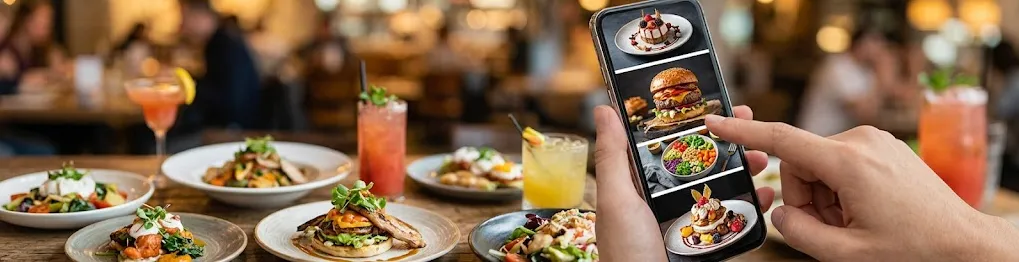
Not every code on a table takes orders, and the three common choices suit different rooms.
A menu-only code shows the menu and nothing else, so the server still takes the order and brings the bill. In FineDine this is the View Only tab under Settings > QR Codes. It fits a place where guests expect staff to take the order anyway, or where you're not ready to change how the floor works. It won't take pressure off servers, though, because the walks to the table stay exactly as they were.
An ordering code adds the cart and payment. Here you choose between a code per table and one code for the whole room, both under View & Ordering. A code per table ties each order to its table, which is what a runner needs to get plates to the right place, so it suits table-service restaurants and bars. The price is upkeep: when you add tables for a private event or put the terrace furniture out in spring, the codes have to follow.
One shared code means you print once and the guest types in their table number. That works at counters and in cafés where people collect their own order. For table service it is a risk, because one wrong digit sends a plate to the wrong table and nobody notices until it arrives. It also won't help a fast counter that wants a code per seat, since a seat number isn't part of the setup.
Paying from the phone when servers still take the order
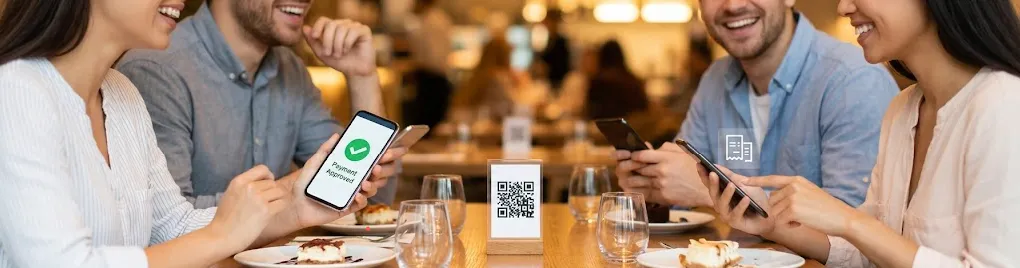
Some rooms want only the payment on the phone. The server takes the order the usual way, and when the guest asks for the bill they scan and settle without waiting for a terminal to come over. This fits places where ordering is part of the service, like a restaurant where the server recommends and explains, but where the queue at the till is the pain. It holds up less well on a crowded floor where tables split the bill often, or where the bill the server opened and the one the guest sees can drift apart.
In the Dine-In QR settings under Orders > Ordering Settings, Enable Ordering and Enable Payment are separate switches. Try your combination on a test table before you rely on it, and check that the bill the guest sees is the one your server opened.
The payment side has its own choice. Fast Checkout sits next to Default Checkout on the same page. It works with Stripe and Myfatoorah and lists split options, and online payment covers card, Apple Pay and Google Pay. If you get paid out through another provider, confirm it works with Fast Checkout before you print anything.
Tablets, for rooms where the server sets the pace
Tasting menus and fine dining rooms usually keep ordering off the guest's phone. The kitchen times courses around what is happening at the table, and a cart on a phone knows nothing about that. A tablet in the server's hand makes more sense there. The Tablet channel under Orders > Ordering Settings has Full Service, Table Top and Kiosk modes. In Full Service the server enters the order, so the guest has no need to scan to order. The flip side is that every order passes through the server, so in a busy, fast room where servers can't keep up, the bottleneck is back.
The guest can still have a code for the menu and the wine list in View Only form, if they want to read the allergens at their own pace.
Reservations and the table map
If you take reservations, keep two things apart. Reservations is its own module and handles the booking, the time slot and the party size. The table map, or floor plan, lives under Tables and shows where each table is. They are different features, and a booking doesn't seat a guest at a particular code.
In practice, the table number is what connects them. When tables are numbered the same way in your floor plan, on your printed codes and in your reservation book, a server can see at a glance that the order from table 12 belongs to the 8:00 booking. If the numbering drifts, say because the codes were printed before you rearranged the room, orders will arrive from a table nobody expected. So this pairing is a poor fit for a room that changes its layout often: the floor plan moves, while the printed codes and the reservation book keep the old numbers.
What changes on the floor
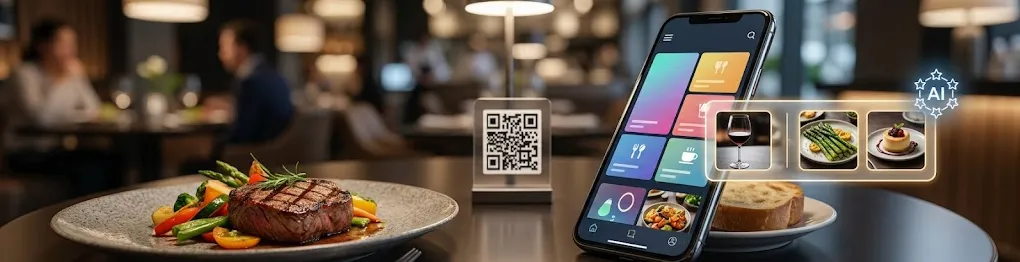
The routine trips are the ones that mostly go: the first order from a table that already knows what it wants, bringing the terminal over, reprinting a bill because the split changed. A second drink can be ordered from the phone while the server is busy at the far end of the room. It helps most where guests are waiting on staff rather than on the kitchen, such as a café with a queue, a loud bar where an order shouted over the music gets half-heard, or a hotel terrace a long walk from the bar. If many of your guests are visitors, our piece on how travelers find and order local food covers the language side.
Anything that needs a person stays with the server: which wine goes with the lamb, what the chef would order, whether a dish can come without onions. Some guests won't scan at all, like regulars who pay cash or people who want their phone in their pocket at dinner, and they keep the paper bill and the terminal.
It also creates new work. Someone has to watch the order screen during service and sort out an order sent from the wrong table. And when something runs out mid-service, someone has to hide it on the digital menu right away, otherwise orders keep coming in and a server walks back to each table to say it's off. In the Menu Manager editor each dish has a visibility toggle for that.
An order typed by the guest is less likely to be misheard between table and kitchen, but a guest can still tap the large instead of the regular, so keep a way to cancel or correct an order. How orders reach the kitchen depends on whether your POS is connected to the ordering system. If it is, they should go straight in and the kitchen works as before. If it isn't, someone keys them into the till, and on a full Friday that double entry is where mistakes creep back.
Checking whether it paid off
Compare the same weekdays before and after launch, not a quiet Tuesday against a full Saturday. Read average ticket next to your prices and the mix of dishes ordered, since a price change moves it too. Order counts alone won't tell you whether tables turn faster, because the same guests can send several orders without freeing the table. The items that move most show you what the phone is selling. FineDine IQ is marked as updated hourly and shows Orders, Avg Ticket, Sessions and Item Views over 7, 14, 28 or 90 days or a custom range, compared with an earlier period.
If the ticket doesn't move, look first at dishes without a photo. On a phone, a dish with no picture is a line of text sitting between dishes that have one, and what a usable menu photo needs is worth a read. A menu built for print may also need reworking for a small screen, which our menu design guide goes through.
| Setup | Fits | Doesn't fit |
|---|---|---|
| Menu-only code | Servers keep taking orders and bills | Rooms that want fewer trips to the table |
| Code per table with ordering and payment | Table-service restaurants and bars | Rooms where the server must pace each course |
| One shared code | Counters and cafés where guests collect their order | Table service, where a ticket needs a table number |
| Payment from the phone only | Server takes the order, guest settles the bill alone | Rooms with a poor signal at the tables |
| Tablet in the server's hand | Tasting menus and fine dining | Fast self-service |
Frequently Asked Questions
- Does a guest need to download an app to pay?
- No. The code opens the menu in the phone's browser, and the guest orders and pays there.
- Can a table split the bill from their phones?
- Fast Checkout in the Dine-In QR settings lists split options, and it works with Stripe and Myfatoorah. Confirm your own payment provider is one of them before you print codes.
- What do I do with guests who won't scan?
- Keep the paper bill and the card terminal for them. The server takes their order as before, and nobody has to be talked into using the phone.
- Can I use the same code on every table?
- You can, but each guest then has to type a table number, and a wrong number sends the plate to the wrong table. It suits counters and cafés better than table service.
- Do I have to print new codes when I rearrange the room?
- With a code per table, only for tables you add or renumber. Download the new codes from Settings > QR Codes and replace those cards.